Klenny iconKlenny
macOS menu bar utility

Klenny

Lock your keyboard.
Clean your Mac.

A native macOS utility that blocks accidental keyboard and trackpad input while you clean your Mac. Unlock safely when you are done.

macOS 26.2 or later · Your first cleaning is free · Prefer the Mac App Store?

  • One-time purchase
  • Everything included
  • No account
  • No tracking in the app

Why Klenny

Everything you need for a spotless keyboard.

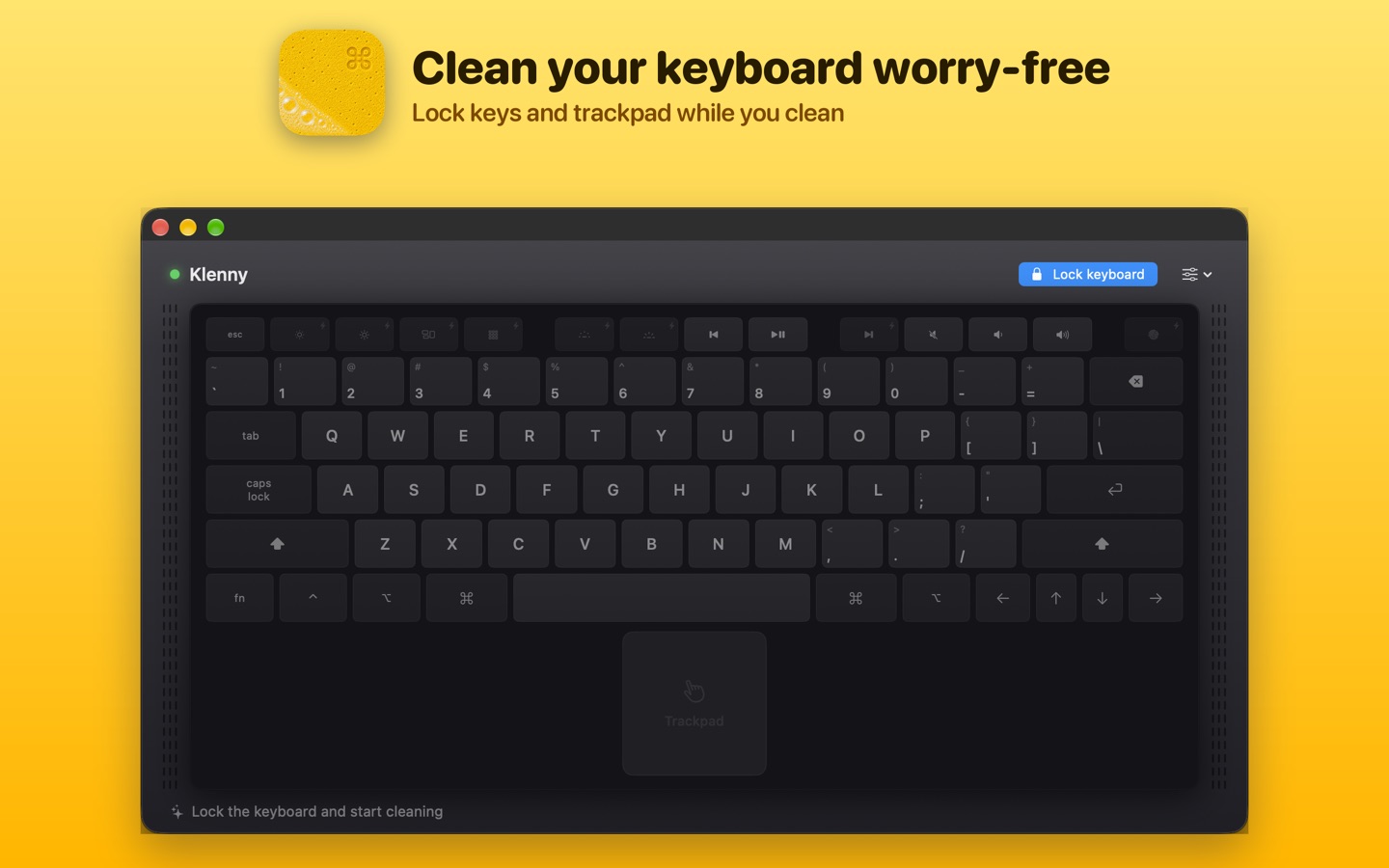
Klenny window with a virtual keyboard and trackpad, ready to lock

Total lock

One click blocks every key and the trackpad across the whole system, so nothing you wipe turns into typing or clicks.

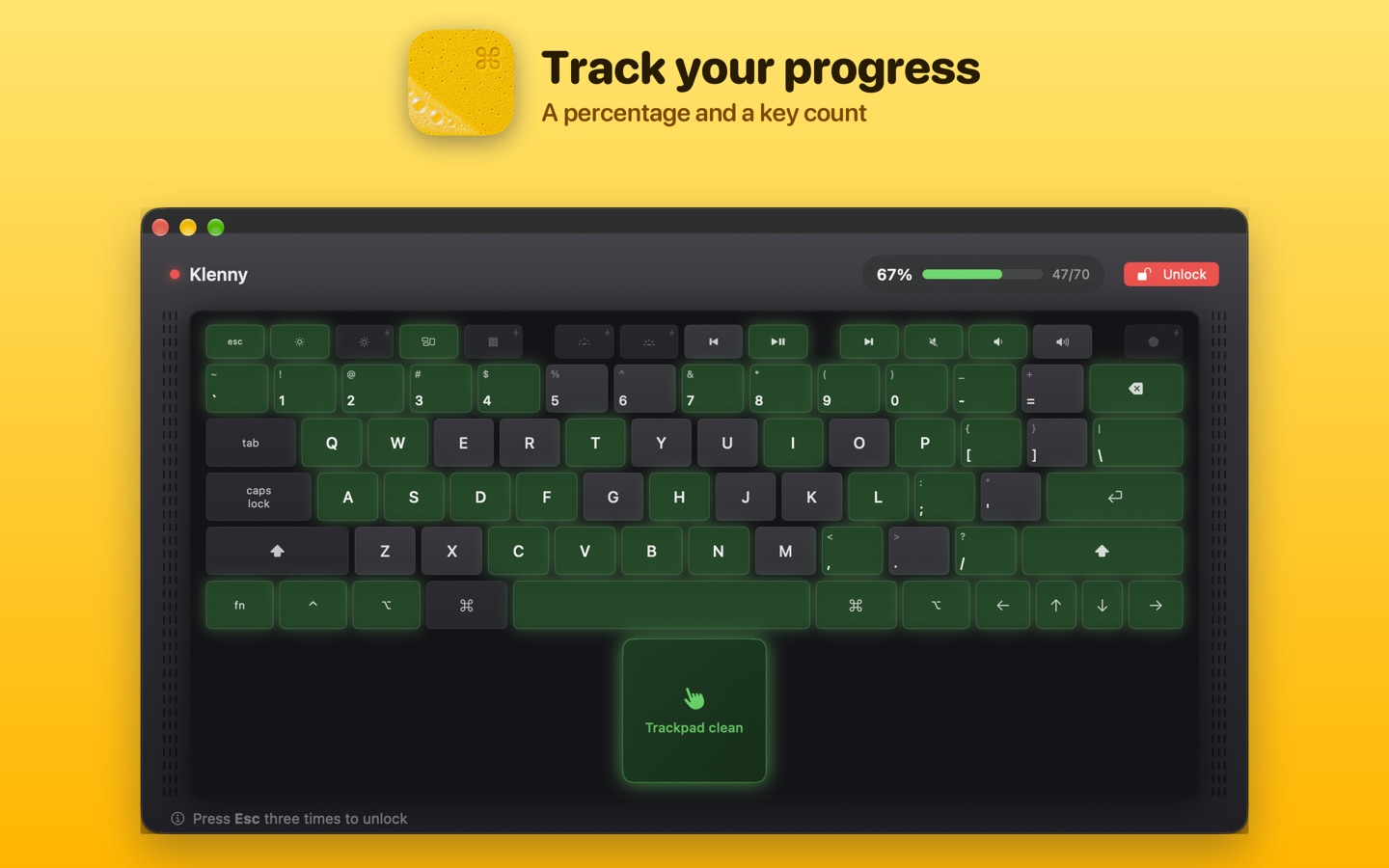
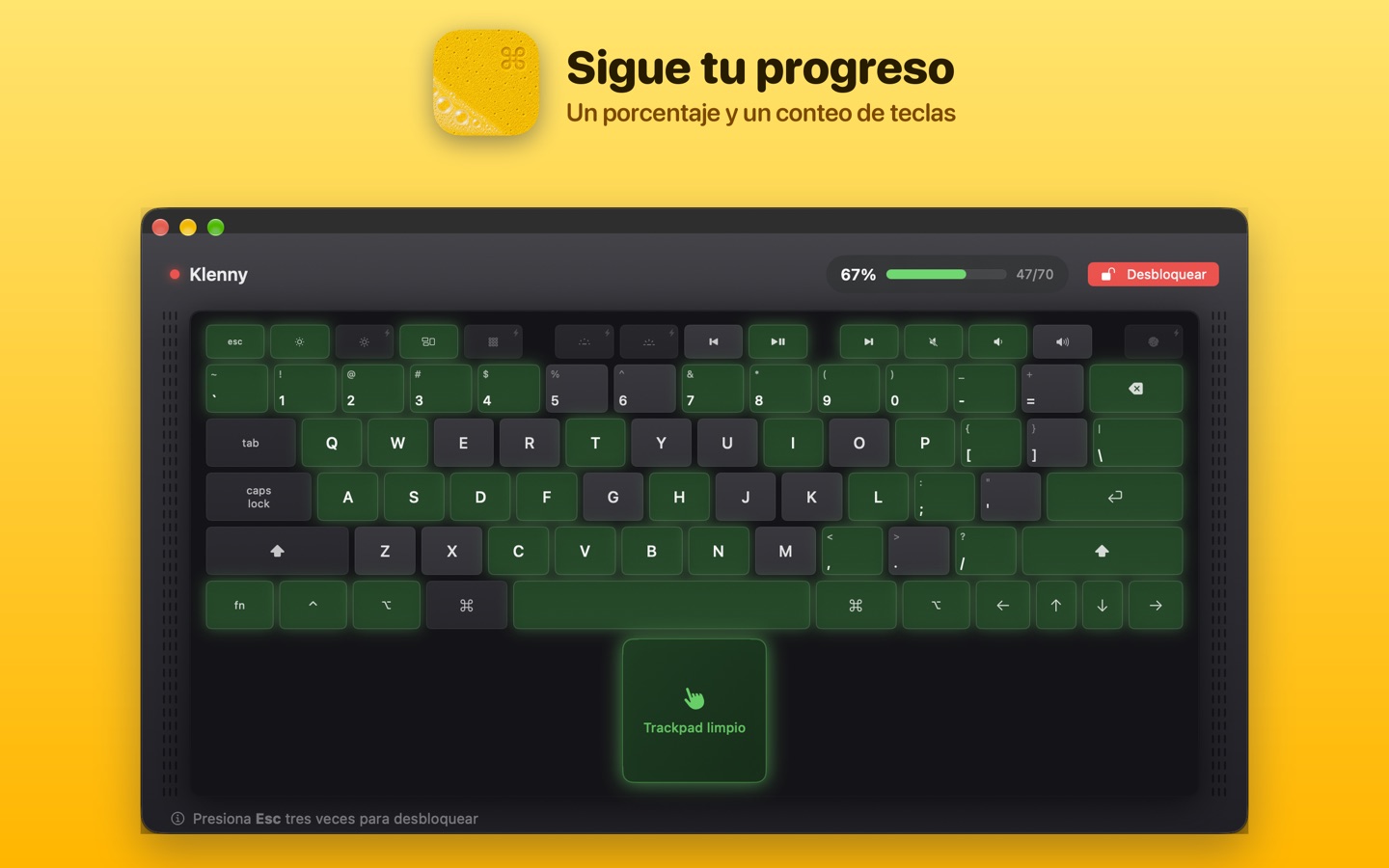
Cleaning in progress: wiped keys glow green and a counter shows 47 of 70 keys

Guided cleaning

Every key you wipe turns green and a counter tracks your progress, so you never miss a spot.

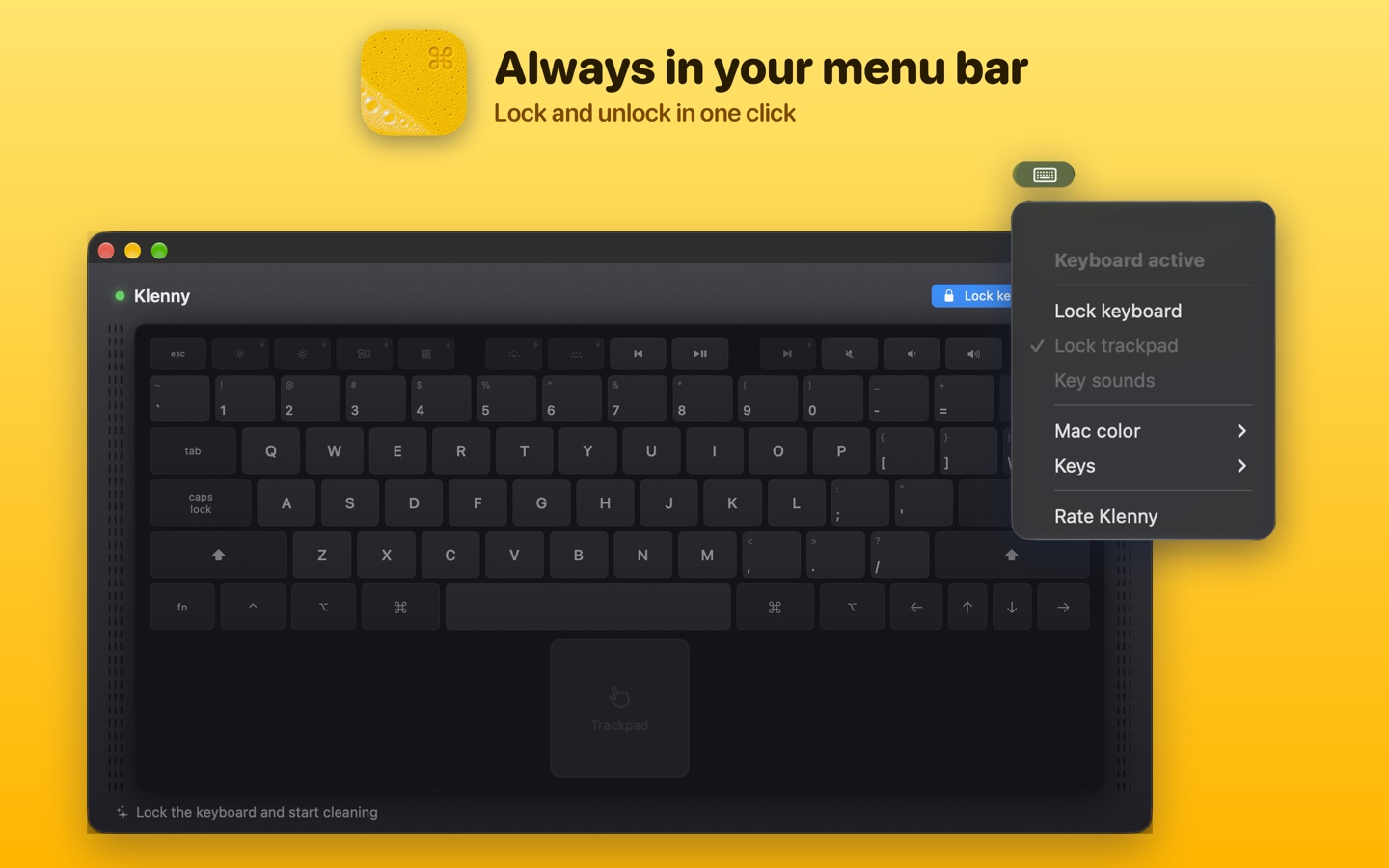
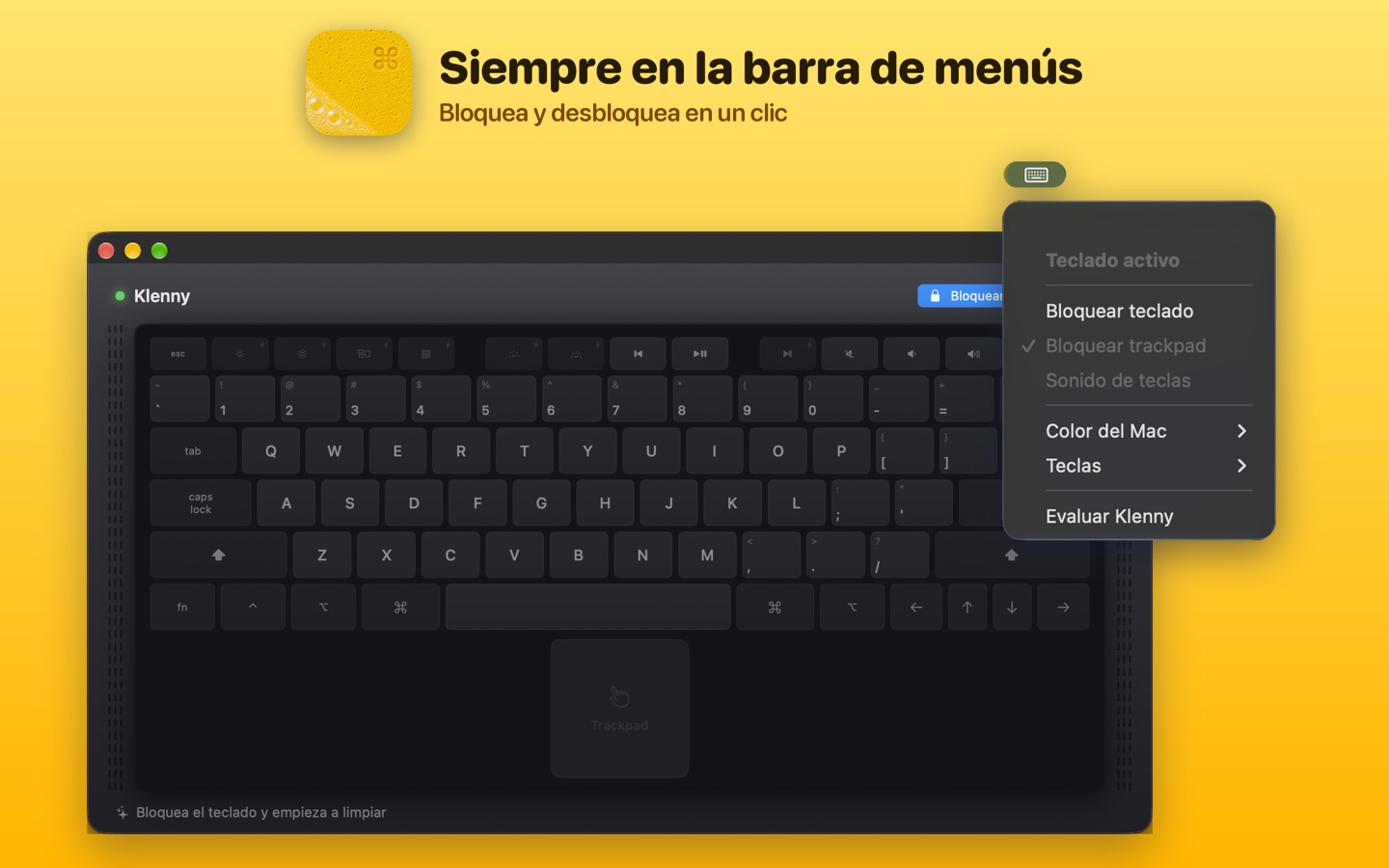
Klenny menu in the macOS menu bar to lock and unlock in one click

Safe unlock, right from the menu bar

Start a cleaning from the menu bar and press Esc three times to unlock. It also ends on its own if your Mac sleeps or the screen locks.

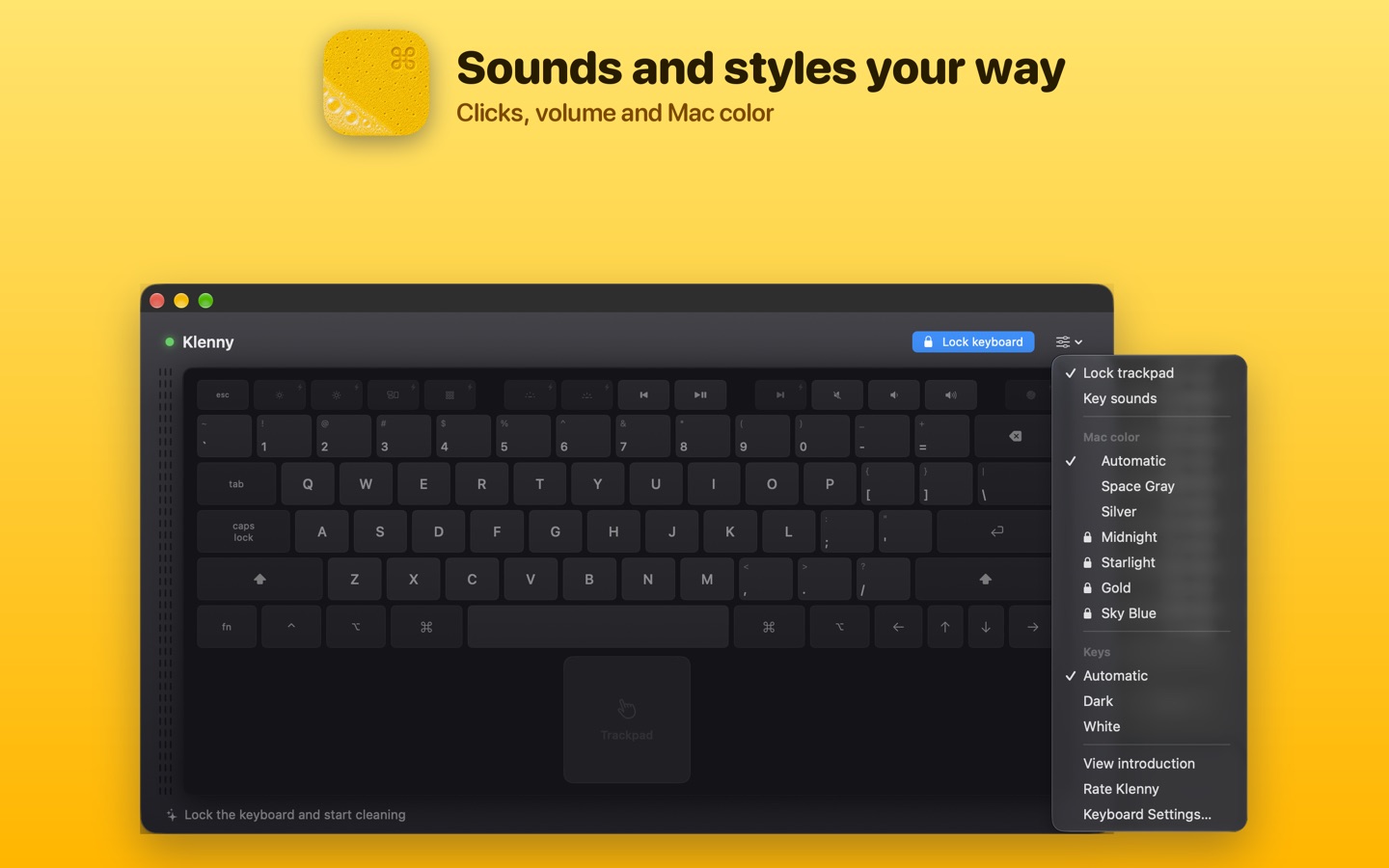
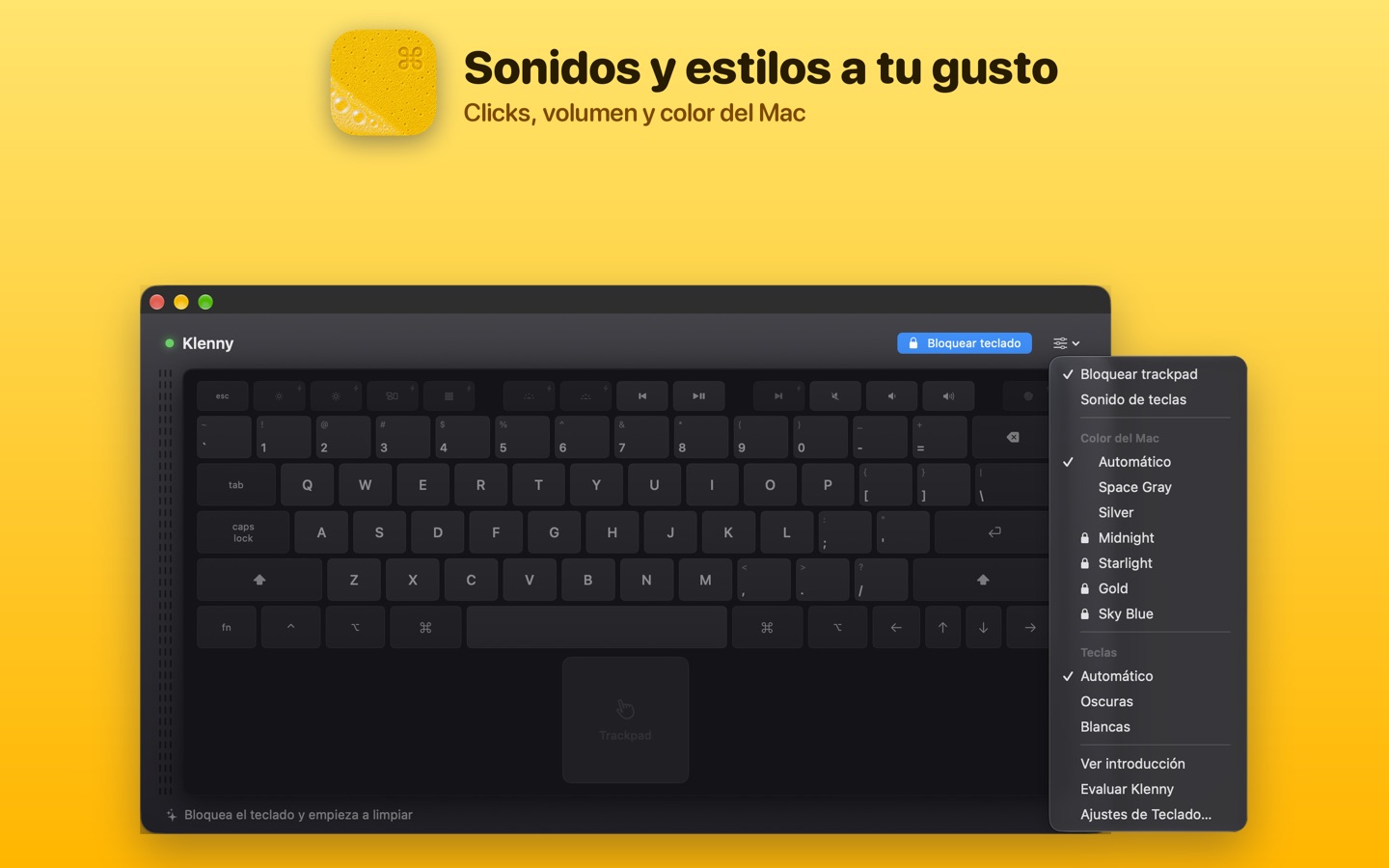
Settings menu with key sounds, Mac color finishes and key styles

Make it yours

Optional key sounds and seven Mac finishes, including Midnight, Starlight, Gold and Sky Blue. All included with your license.

Download

Get Klenny for your Mac.

Try it free

Download Klenny and do your first cleaning free. No account or credit card needed.

Download Klenny

  • macOS 26.2 or later
  • Version 1.0, signed and notarized by Apple
  • Updates itself automatically

Step-by-step install guide

Buy a license · US$4.99

One-time purchase, no subscription. One license key works on up to 3 Macs at a time and unlocks every feature, sound and finish, plus updates.

Buy Klenny

Checkout by Polar, our merchant of record: it handles payment, invoices and taxes and emails you the key. 7-day refunds.

Prefer the Mac App Store? See what is different.

Install

Up and running in five steps.

  1. Open the download

    Open Klenny-1.0.dmg from your Downloads folder or your browser’s downloads list. A Klenny window opens.

  2. Drag Klenny to Applications

    In that window, drag the Klenny icon along the arrow onto the Applications shortcut. Then eject the Klenny disk in Finder.

  3. Open Klenny

    Open Klenny from your Applications folder. macOS asks once because it came from the internet: choose Open. Klenny is notarized by Apple and lives in the menu bar.

  4. Allow Accessibility

    When Klenny asks, click Accessibility Settings…, or go to System Settings › Privacy & Security › Accessibility and turn on Klenny. Why?

  5. Activate your key

    Your first cleaning is free. To keep going, click the Klenny icon in the menu bar, choose Buy Klenny…, paste the key from your email and click Activate. No key yet? Buy one.

Website vs. Mac App Store

The full Klenny is the one you download here.

Mac App Store rules don’t let Klenny block the keyboard for the whole system, so the App Store version has fewer features.

Mac App Store version

  • Locks the keyboard only inside its own full-screen window (kiosk mode)
  • Bought and updated through the App Store
  • Needs no Accessibility permission

The two versions are licensed separately. How licenses work.

Technical Build

Native macOS code for low-level input control.

SwiftUI + Observation

Native menu bar popover, onboarding, virtual keyboard, and trackpad interface.

AppKit + CoreGraphics

Uses a CGEvent session tap to suppress keyDown, keyUp, and modifier events while cleaning mode is active.

IOKit HID

Detects input devices and supports hardware-aware keyboard and external mouse workflows.

macOS Permissions

Guides users through the Accessibility permission required for system-wide input blocking.

Keyboard Model

Tracks an ANSI keyboard layout with visual cleaning feedback and escape-key recovery.

Privacy Boundary

No keystroke storage, analytics, or accounts. The only network calls are license checks with Polar and update checks.

Privacy

Your keyboard activity stays on your Mac.

To block every key system-wide while you clean, macOS requires Accessibility permission. Klenny uses it only during a cleaning session: it never records, stores or sends what you type, and you can turn it off any time in System Settings. Klenny has no analytics and no custom backend. The version from this website goes online only to activate and verify your license key with Polar (no computer name or personal data) and to check for updates. Privacy notice.

FAQ

Questions before you buy.

What happens after the free cleaning?

Klenny asks for a license key before it starts a new cleaning. Ending a cleaning is never blocked, so you can always unlock your keyboard.

How do I move my license to another Mac?

On the Mac you no longer use, click the Klenny icon in the menu bar, choose License… and click Deactivate on This Mac. That frees a slot for the new Mac. If the old Mac was lost, sold or erased first, email us and we will free the slot for you.

I did not get my license key.

Polar emails the key right after checkout, to the address you used to pay. Check your spam or promotions folder. If it is not there, write to us from that email address and we will help you.

Can I get a refund?

Yes, within 7 days of your purchase. Email hola@misaellandero.com with the email address you used to buy. Refunds are issued through Polar, our merchant of record, to your original payment method. A refunded key stops working the next time Klenny verifies it.

How do updates work?

Klenny checks for new versions on its own and offers to install them, so you never need to download it again. To check right away, choose Check for Updates… from the Klenny menu. Updates are free, signed and notarized, and your license stays active.

Does Klenny need the internet?

Only to activate your key and to check for updates. Klenny verifies the license about once a week and keeps working for up to 30 days offline.

Does my license work with the Mac App Store version?

No. They are sold separately: a license key from this website does not unlock the Mac App Store version, and an App Store purchase does not include a license key. To compare features, see Website vs. Mac App Store.

How do I uninstall Klenny?

To reuse the license elsewhere, first deactivate it as described in moving your license. Then quit Klenny, drag it from Applications to the Trash, and remove it from System Settings › Privacy & Security › Accessibility.

Support

Need a hand?

Questions about installing, your license or a refund? Write to hola@misaellandero.com. Include your macOS version and, for license questions, the email address you used to buy.

Email support

Your download has started

Now install Klenny in five steps

Download didn’t start? Download again